In a post from earlier this year, How to run LLMs on IBM i, I showed how to run Large Language Models (LLMs) directly on IBM i using the open source framework Llama.cpp. In this Part 2, I’ll share a big update: there’s now an official RPM for Llama.cpp on IBM i .
Below, you’ll install the RPM, download a compatible model, and run an LLM from a PASE terminal.
1) Install Llama.cpp
The llama.cpp package is available here: https://public.dhe.ibm.com/software/ibmi/products/pase/rpms/repo-base-7.3
Run
yum upgradeto get the latest repo metadata. If you don’t see updates, tryyum clean metadata.
From a PASE terminal, install the package:
yum install llama-cppAfter installation, these commands will be available:
llama-cli
llama-quantize
llama-run
llama-server
llama-simple
llama-simple-chat
2) Download a compatible model
You’ll need a model in GGUF format that works with Llama.cpp on IBM i. Use the public Hugging Face repo: models-for-i (Models for IBM i)
Available models:
| Model | Provider | Parameters |
|---|---|---|
| Llama-3.2 | Meta | 1 Billion |
Note: We only have one publicly compatible model: Llama-3.2-1B
You can manually prepare models for IBM i using this repo: ajshedivy/models-for-i
Prerequisites
Before downloading, create a models directory on IBM i:
mkdir -p ~/modelsDownload Methods
There are two ways to download models from Hugging Face. The Hugging Face CLI method is recommended for easier management and future downloads.
Method 1: Hugging Face CLI (Recommended)
Step 1: Set up the Hugging Face environment
Create a dedicated directory for Hugging Face tools:
mkdir -p huggingface
cd huggingface
Step 2: Create a Python virtual environment
python3.13 -m venv . --system-site-packages
source ./bin/activate
Step 3: Install the Hugging Face CLI
pip install "huggingface_hub[cli]"Step 4: Authenticate with Hugging Face
First, create a Hugging Face account if you don’t have one:
- Visit https://huggingface.co/
- Sign up for a free account
- Navigate to Settings → Access Tokens
- Click “New token” and create a token with “Read” permissions
- Copy the token (you’ll need it in the next step)
Now authenticate on IBM i:
hf auth loginWhen prompted, paste your access token and press Enter.
Step 5: Download model
hf download --local-dir $HOME/models models-for-i/Llama-3.2-1B-InstructThe download will begin and show progress. This may take several minutes depending on your connection speed.
Step 6: Verify Download
ls -lh ~/models/Llama-3.2-1B-InstructMethod 2: Curl
If you prefer a simpler approach or can’t use the CLI, download directly with curl:
Step 1: Natigate to your models directory:
cd ~/modelsStep 2: Download the model file
curl -L -o Llama-3.2-1B-Instruct-f32-be.gguf \
  https://huggingface.co/models-for-i/Llama-3.2-1B-Instruct/resolve/main/Llama-3.2-1B-Instruct-f32-be.gguf
Step 3: Verify the download
ls -lh Llama-3.2-1B-Instruct-f32-be.ggufOnce you’ve successfully downloaded your model using either method, you’re ready to proceed to the next section where we’ll configure and run the model with Llama.cpp.
3) Next steps (optional)
-
Verify the binary runs:
llama-cli --help -
Try the simple run command to confirm everything is wired up:
llama-run models/Llama-3.2-1B-Instruct-f32-be.gguf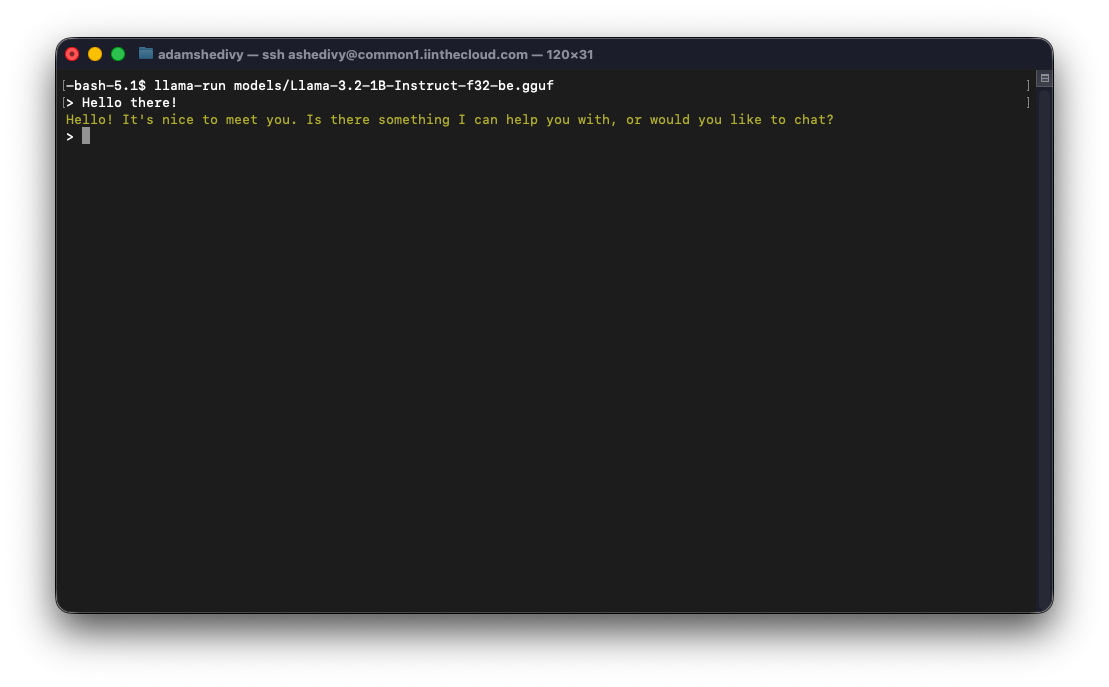
Congrats, you are running an open-source LLM on IBM i !! In the next series, we will dive into more complex use cases, different models, etc.
Closing thoughts
Running LLMs natively on IBM i is a practical option for exploring different AI integrations and use cases. The official RPM for Llama.cpp reduces setup friction, and the GGUF ecosystem gives you flexibility to choose models that fit your hardware profile.
What’s next in this series
Coming up, we will be releasing more content around using llama.cpp:
1) Running Different Models on IBM i
- Compare small and mid-sized models that actually run well on Power hardware (Llama 3, DeepSeek-Coder, Phi-3, Mistral, etc.).
- Show when to pick each model depending on the workload: chat, coding help, SQL assist, or lightweight agents.
2) Quantization, MMA, and Performance Tuning
- Break down the practical tradeoffs between q4, q5, q8, and FP16—and which formats deliver the best latency on Power10.
- Cover simple system-level tweaks (threads, memory layout, loading behavior) that consistently improve inference speed.
3) llama-server APIs and Example Apps
- Walk through exposing a model as an HTTP endpoint on IBM i using llama-server.
- Build a few real examples: a SQL rewrite API, a green-screen text analyzer, and a small log-summary service.
Stay tuned!